HLS for backend engineers: playlists, segments and keyframes
What backend engineers need to know about live HLS: playlists, segment length vs target duration, keyframes, latency and an aligned quality ladder.
Table of Contents
If you run the servers behind a live stream, you don’t need to know much about codecs. You do need to know what files a player asks for, how often, and what decides their size and timing. That’s what this post covers, with commands you can run against any HLS stream.
The series is about standard HLS, with MPEG-TS or fragmented MP4 (CMAF) segments. The same principles carry over to Low-Latency HLS, though its partial segments and blocking playlist reloads aren’t covered here. Real-time streaming, such as WebRTC at under a second of delay, works differently and isn’t covered at all: it has no playlists or segments for a CDN to cache.
In short: A live HLS stream is a master playlist of qualities, one media playlist per quality, and short segments. Each segment must start on a keyframe, so a fixed keyframe interval of 1 or 2 seconds keeps segments even. The target duration is the ceiling on segment length; players reload about once per target duration and start three target durations behind live, so it sets your latency. Every quality needs the same boundaries and timestamps for switching to be smooth.
Three kinds of file
HLS (HTTP Live Streaming) turns a live stream into plain files served over HTTP. A player only ever does two things: download small text files that say what’s available, and download short chunks of media.
The master playlist lists the qualities, often called the ladder. Each entry gives a bandwidth and points at that quality’s media playlist:
#EXTM3U
#EXT-X-VERSION:3
#EXT-X-STREAM-INF:BANDWIDTH=2500000,RESOLUTION=1280x720,CODECS="avc1.4d401f,mp4a.40.2"
720p/chunklist.m3u8
#EXT-X-STREAM-INF:BANDWIDTH=1200000,RESOLUTION=854x480,CODECS="avc1.4d401e,mp4a.40.2"
480p/chunklist.m3u8
The player picks a quality from its bandwidth estimate and can switch at the next segment. RESOLUTION and CODECS are optional, but players use them to skip qualities the device can’t show or decode, so it’s worth including them.
The media playlist lists the most recent segments of one quality:
#EXTM3U
#EXT-X-VERSION:3
#EXT-X-TARGETDURATION:4
#EXT-X-MEDIA-SEQUENCE:207
#EXTINF:4.000,
media_207.ts
#EXTINF:4.000,
media_208.ts
#EXTINF:4.000,
media_209.ts
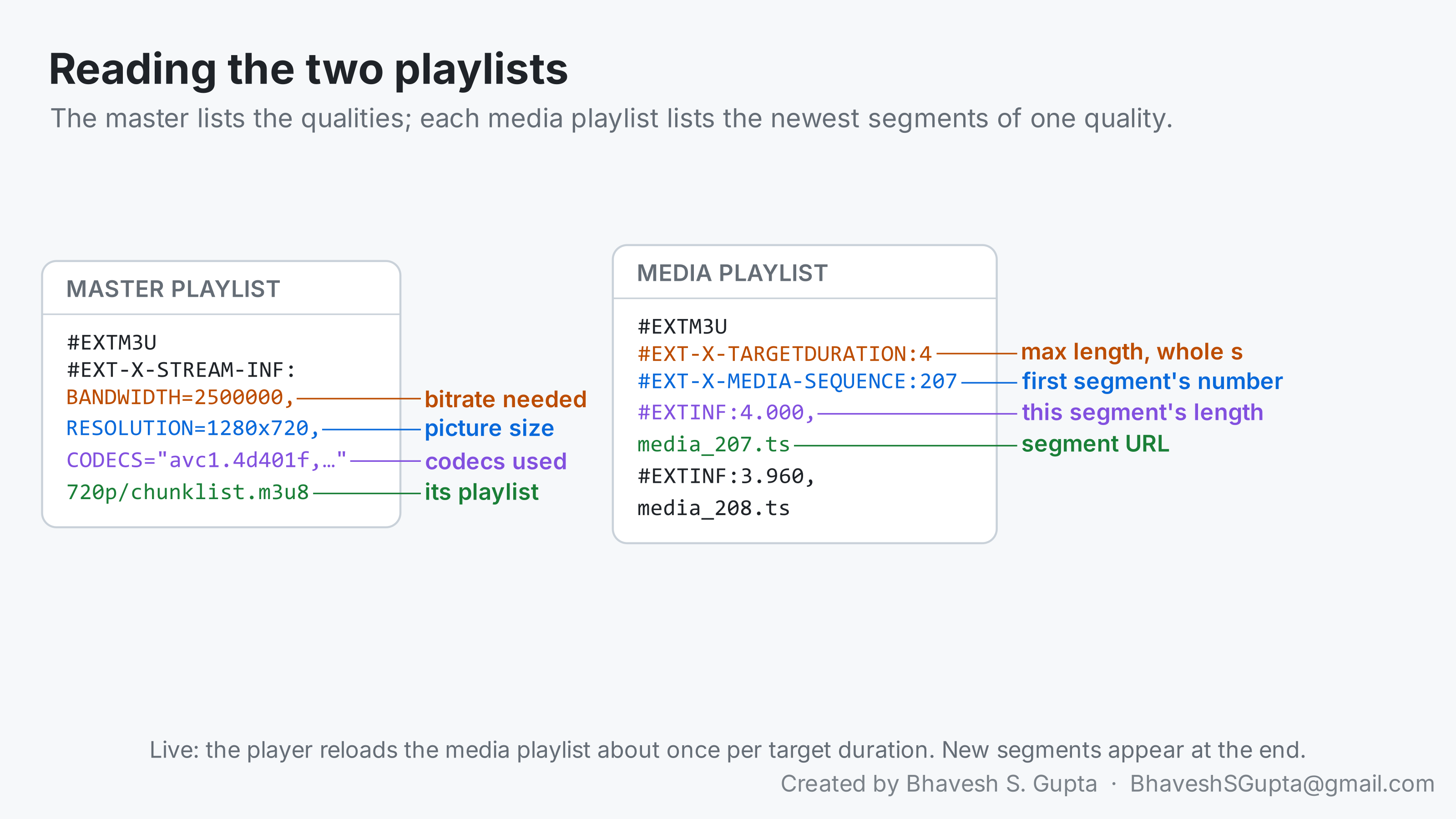
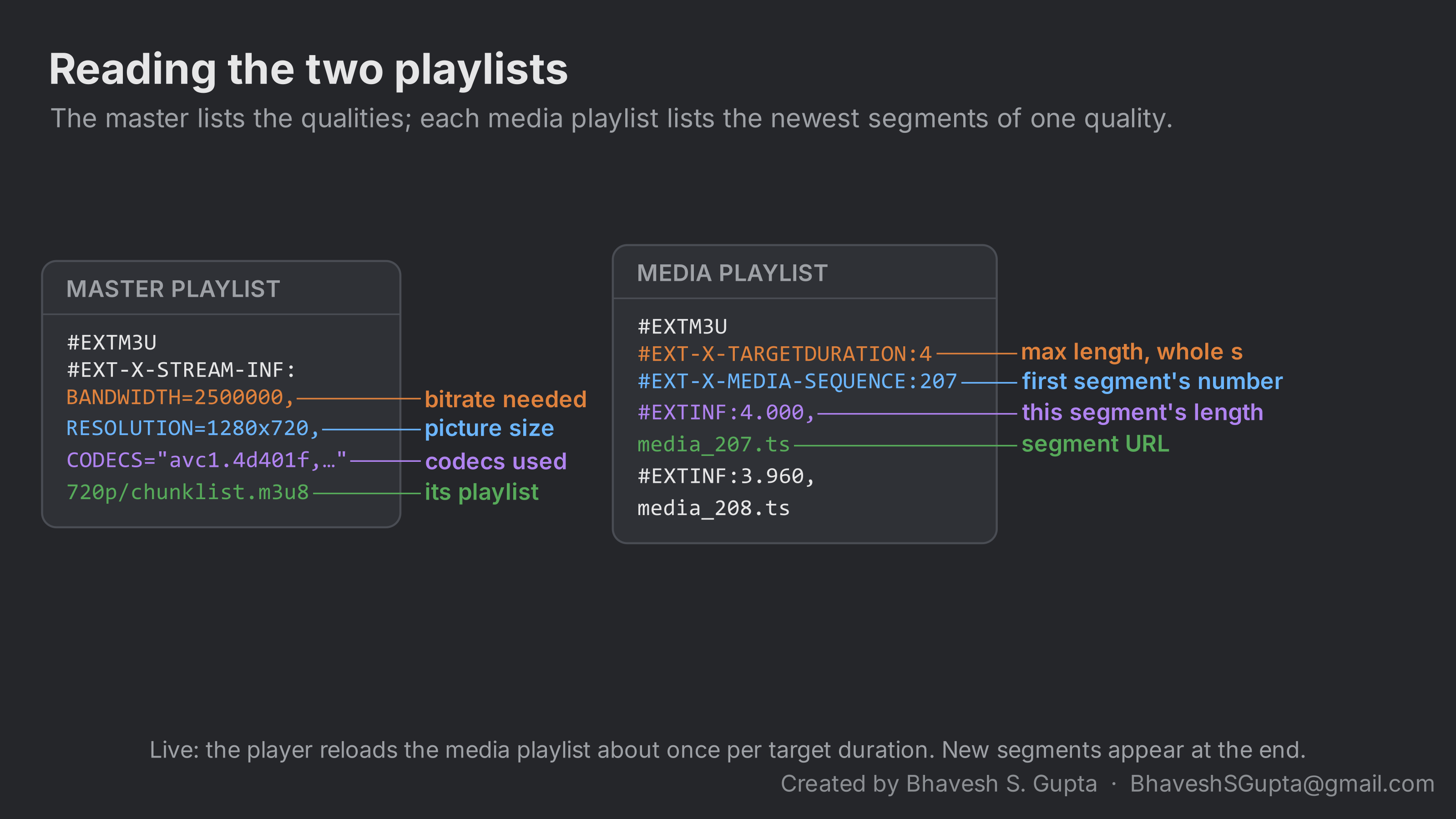
Segments are a few seconds of audio and video each, here as MPEG-TS files (.ts). Newer streams often use fragmented MP4 instead; everything below applies to both.
For a live stream, the player keeps re-downloading the media playlist to find new segments. In the browser’s network panel that shows up as playlist, segment, playlist, segment, for as long as you watch: a request of about a kilobyte, then one of hundreds of kilobytes, over and over.
The numbers that matter
Three numbers in the media playlist are easy to mix up: the segment length you configure, the length each segment actually has, and the target duration.
Segment length is how much media you ask the server to put in each segment, usually 2 to 6 seconds. The server can only cut where there’s a keyframe (more on that below), so the real length is the configured one, rounded up to the next keyframe. The trade-off:
- Shorter segments lower latency and let the player switch quality sooner, because it can only switch at a segment boundary. They also multiply requests: with 2-second segments each viewer fetches about 30 segments and reloads the playlist about 30 times a minute, per quality. And each segment carries a little fixed overhead (container headers, the first keyframe), so very short segments waste a larger share of the bytes.
- Longer segments mean fewer, larger requests and more viewers sharing each cached file, at the cost of latency.
#EXTINF is the actual length of each segment, written just before its URL: 4.000, or 3.960 when the keyframes don’t land exactly.
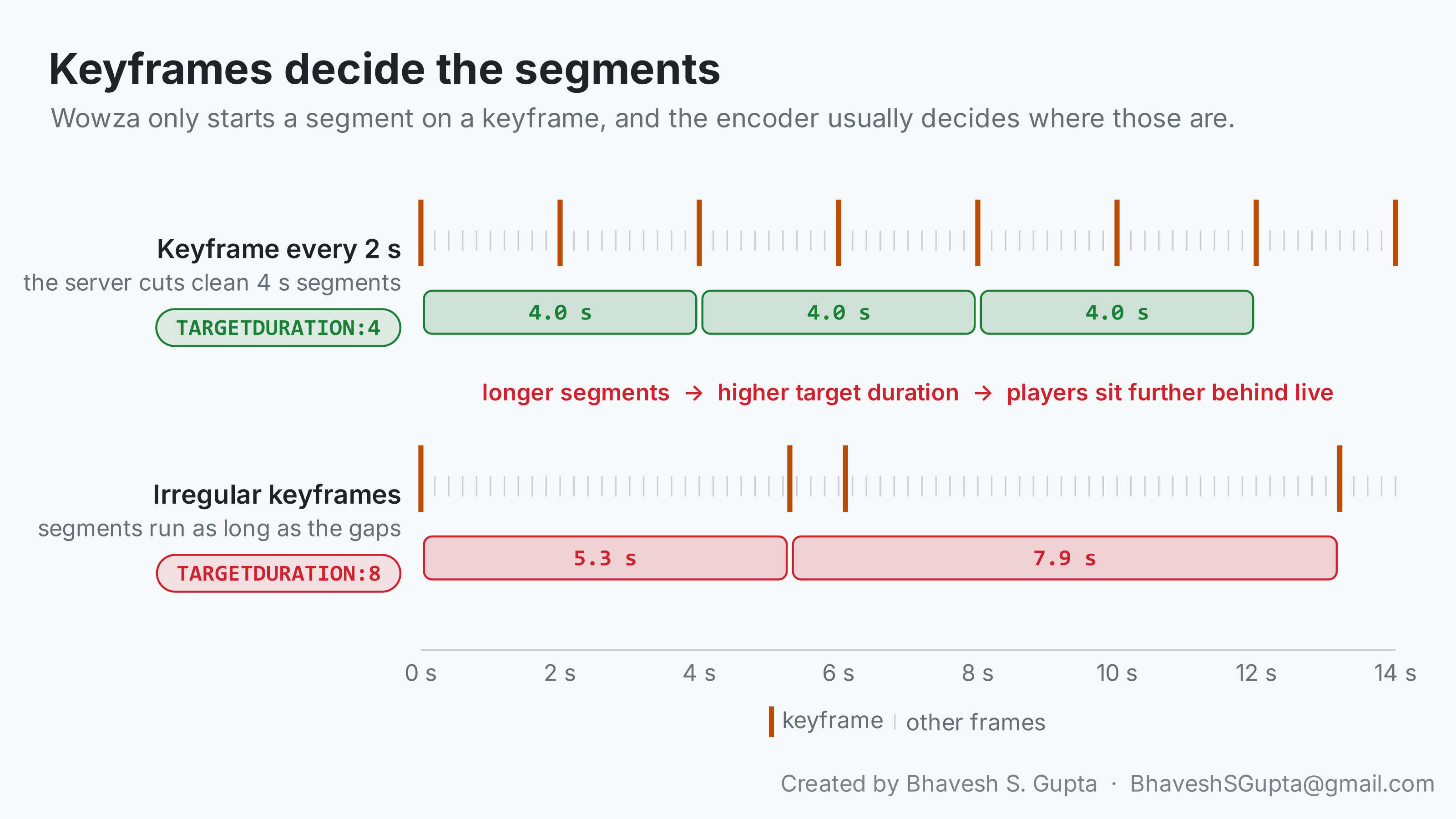
EXT-X-TARGETDURATION is a ceiling, not the length of every segment: each segment’s EXTINF, rounded to the nearest whole second, must be no longer than it, and it isn’t supposed to change during the stream. Segments of 3.96 to 4.04 seconds give a target duration of 4. If keyframes arrive irregularly and one segment runs to 5.6 seconds, it rounds to 6, and the playlist has either to declare 6 from the start or break its own promise.
Players lean on the target duration for two decisions, which is why it sets your latency:
- When to reload the playlist. After a reload that brought new segments, a player waits at least one target duration before the next; if nothing changed, it tries again after half of one.
- Where to start. A player shouldn’t start closer than three target durations from the end of the playlist, so it has a buffer of finished segments to play while the next ones are made.
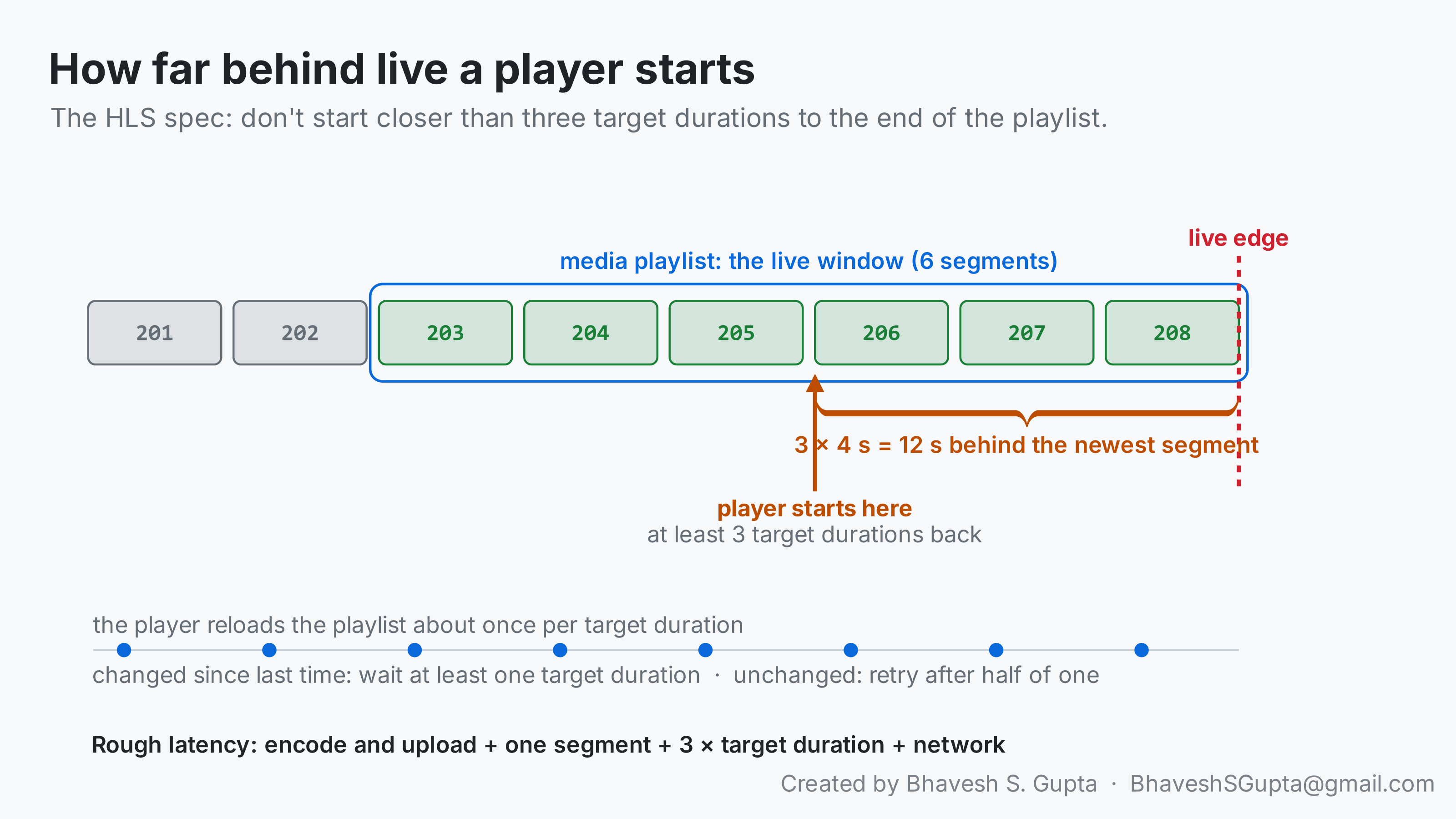
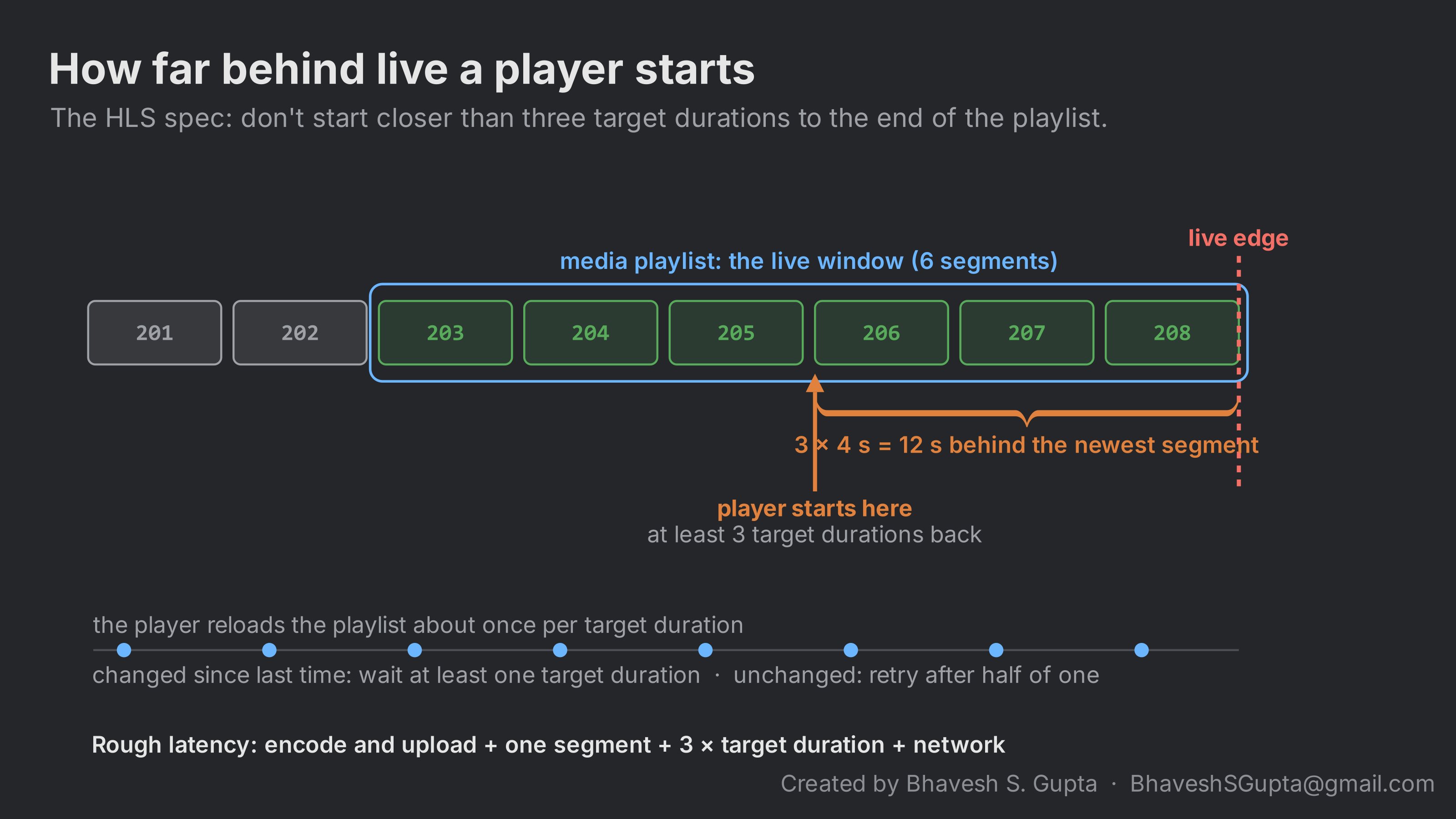
Put together, latency is roughly the encoder and upload delay, plus one segment (it has to be complete before it’s listed), plus three target durations, plus the network. With 4-second segments that’s 4 + 3 × 4 = 16 seconds before encoding and network delay. With 10-second segments and a target duration of 10 it’s 40 seconds or more, which is why a few irregular keyframes can push every viewer noticeably further behind live.
EXT-X-MEDIA-SEQUENCE is the number of the first segment in the playlist. It goes up by one each time the oldest segment drops off. Two qualities are aligned when the same sequence number covers the same moment in both.
The live window is how many segments the playlist keeps. Three is a common minimum; six gives a player that hiccups more room to recover before the segment it wants falls out of the list. A segment leaves the playlist after one window, so with six 4-second segments it is listed for about 24 seconds.
Keyframes decide the segments
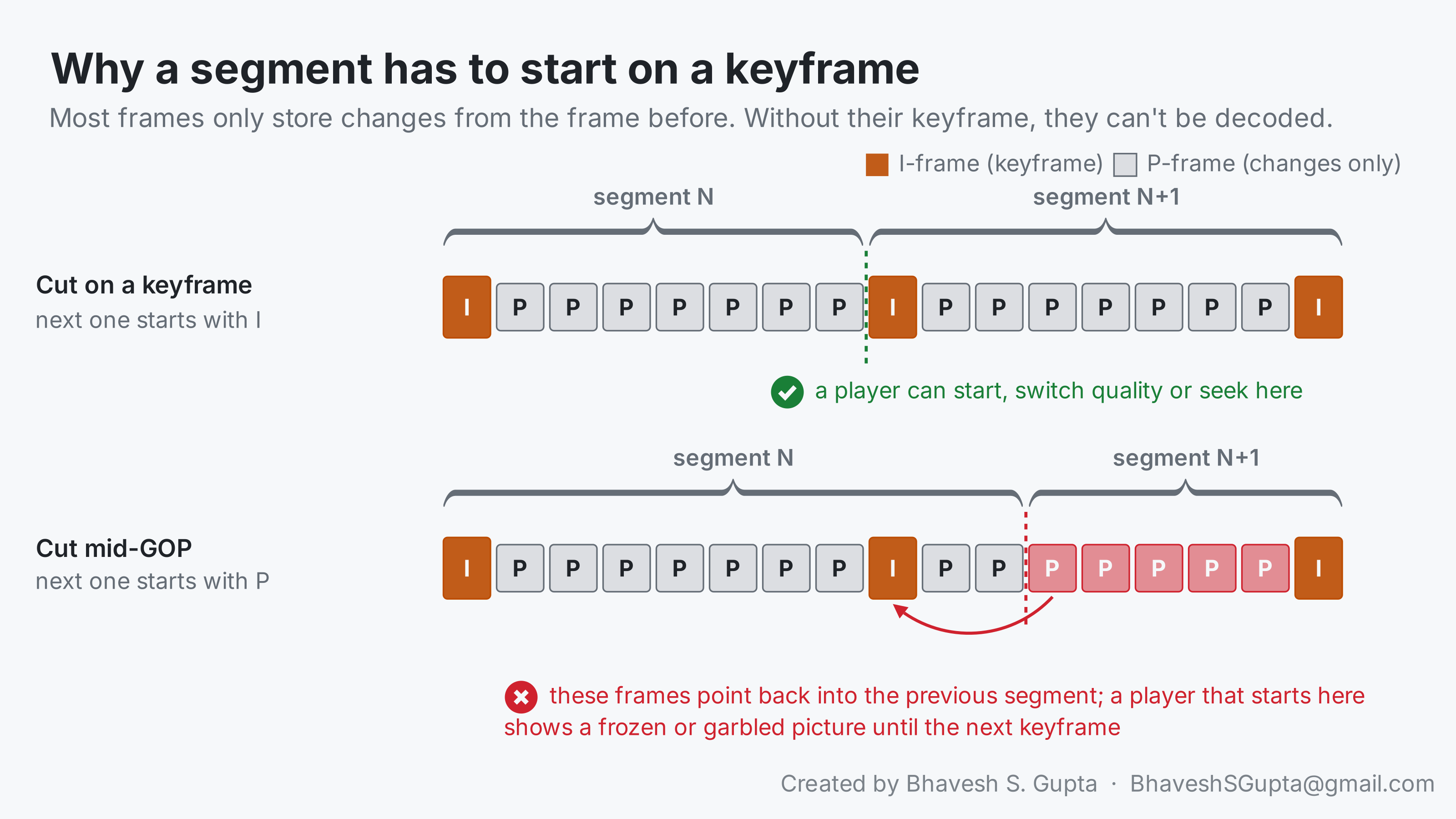
Most video frames don’t store a whole picture. An encoder sends a full picture now and then, the keyframe (an I-frame, or IDR frame in H.264), and for the frames in between it stores only what changed since the previous one. The run from one keyframe to the next is a group of pictures, or GOP.
That’s why every segment has to start on a keyframe. A player starts decoding at a segment boundary when it joins, when it switches quality and when it seeks. If a segment began with frames that only describe changes, the picture they change lives in the previous segment, which this player never downloaded. It would show a frozen or garbled image until the next keyframe arrived. Apple’s HLS authoring guidelines expect every segment to begin with a keyframe, and segmenters such as Wowza’s only cut there.
So the keyframe interval decides where segments can be cut. If the encoder sends one every 2 seconds, the server can make clean 4-second segments. If it sends them irregularly, you get segments of whatever length the gaps allow, and the target duration grows to fit the longest.
This is why encoder settings end up being the backend’s problem. In OBS the setting is “Keyframe Interval” in seconds; in most hardware and desktop encoders it’s “key frame every N frames”, so at 25 fps, 50 frames is 2 seconds.
The default is often the trap. OBS’s 0 means “auto”, which leaves it to the encoder; x264’s own default allows up to 250 frames between keyframes (10 seconds at 25 fps) and adds extra ones at scene cuts. That’s fine for a file you download and terrible for live segments: the gaps vary from shot to shot, and so do your segment lengths.
What you want is a fixed interval that divides the segment length evenly: a keyframe every 1 or 2 seconds for 4- or 6-second segments, with no extra keyframes at scene cuts. In x264 terms at 25 fps that’s keyint=50:min-keyint=50:scenecut=0. If your server transcodes the stream, its transcoder can set its own keyframe interval and take the encoder out of the picture for the qualities it makes.
You can check all of this yourself with ffprobe, which comes with ffmpeg. Download a few segments with curl -O (or point ffprobe straight at their URLs) and ask it questions. Every command in this series has the same shape:
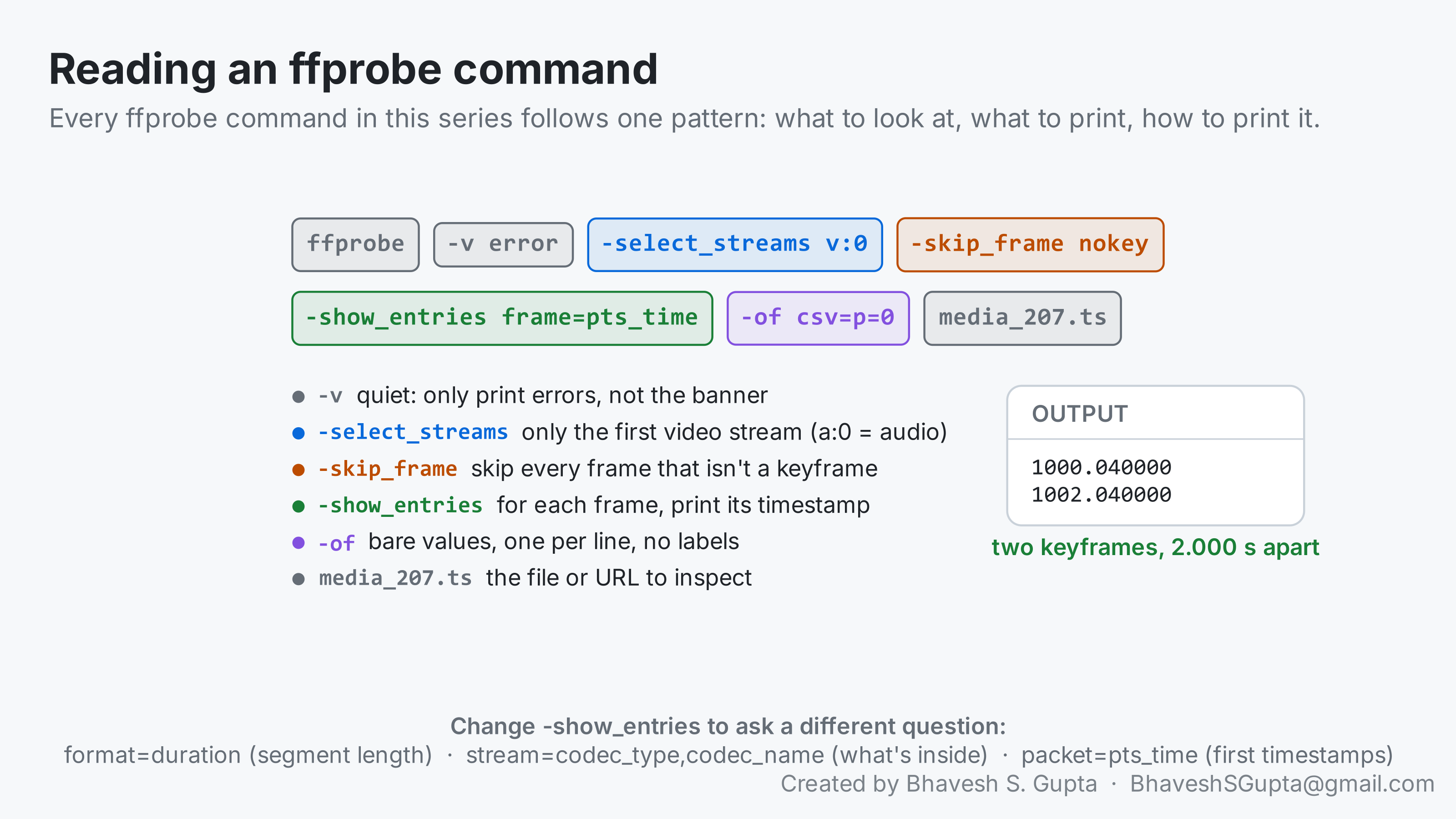
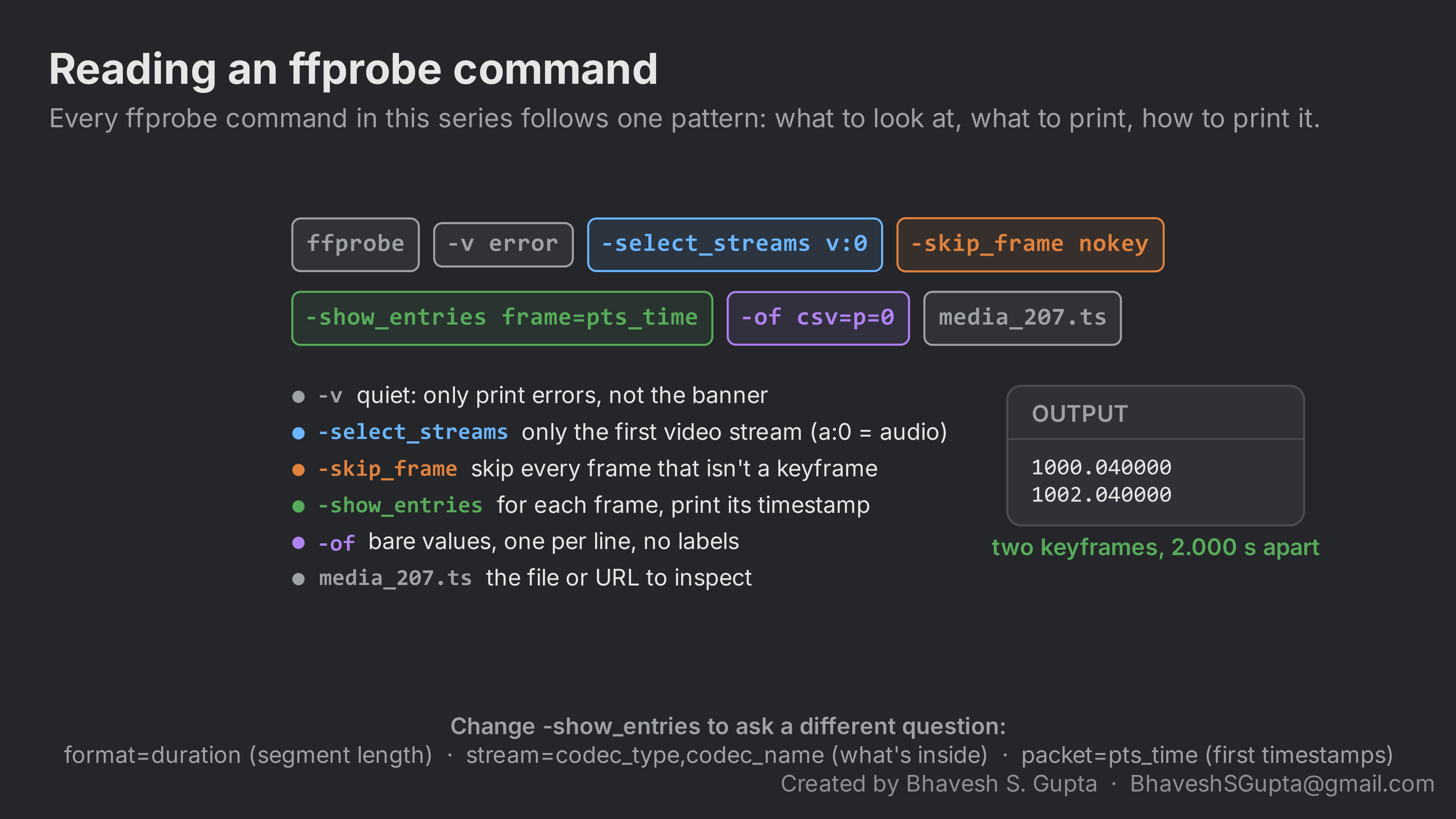
To see where the keyframes in a segment fall:
Example output for a 4-second segment from an encoder with a 2-second keyframe interval:
1000.040000
1002.040000
Each line is one keyframe’s presentation time in seconds. The values are on the stream’s clock, so they don’t start at zero; what matters is the gap between them. Here it’s 2.000 seconds. If the gaps vary (1000.04, 1003.20, 1003.96…), the encoder is placing keyframes on its own and your segment lengths will vary with them.
To check segment lengths across a live playlist:
Example output:
media_207.ts 4.000000
media_208.ts 3.960000
media_209.ts 5.600000
The first two are what a 4-second target looks like when keyframes are regular. The third is a segment that had to wait for a late keyframe; it rounds to 6, above a target duration of 4, which is exactly the problem described above.
Audio-only streams
A stream meant to carry only audio often carries video too, because the encoder profile never said otherwise. Nothing breaks, so nobody notices, but listeners download a video track they never see, and its keyframes still decide where segments are cut. Check what’s actually inside a segment:
| |
Example output for an “audio-only” segment that isn’t:
stream|index=0|codec_name=h264|codec_type=video|bit_rate=N/A
stream|index=1|codec_name=aac|codec_type=audio|bit_rate=96000
One line per stream. A codec_type=video line in a stream that should be audio only is the giveaway. MPEG-TS often doesn’t record a video bitrate (N/A), so to see what it costs, compare the segment’s file size with what the audio alone should be (next paragraph).
The cost is easy to work out, because a segment’s size is just bitrate times duration: kilobits per second × 125 = bytes per second.
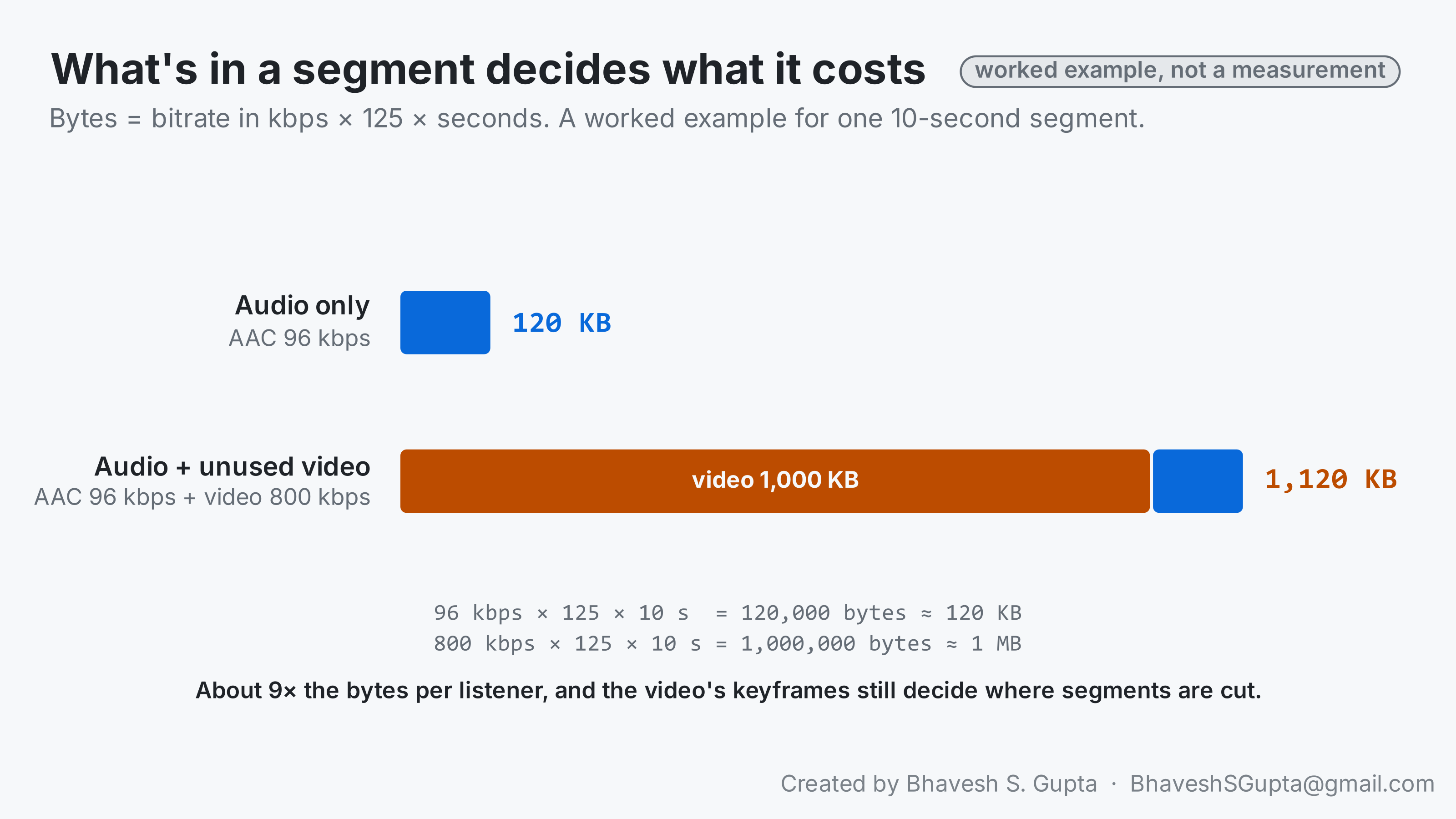
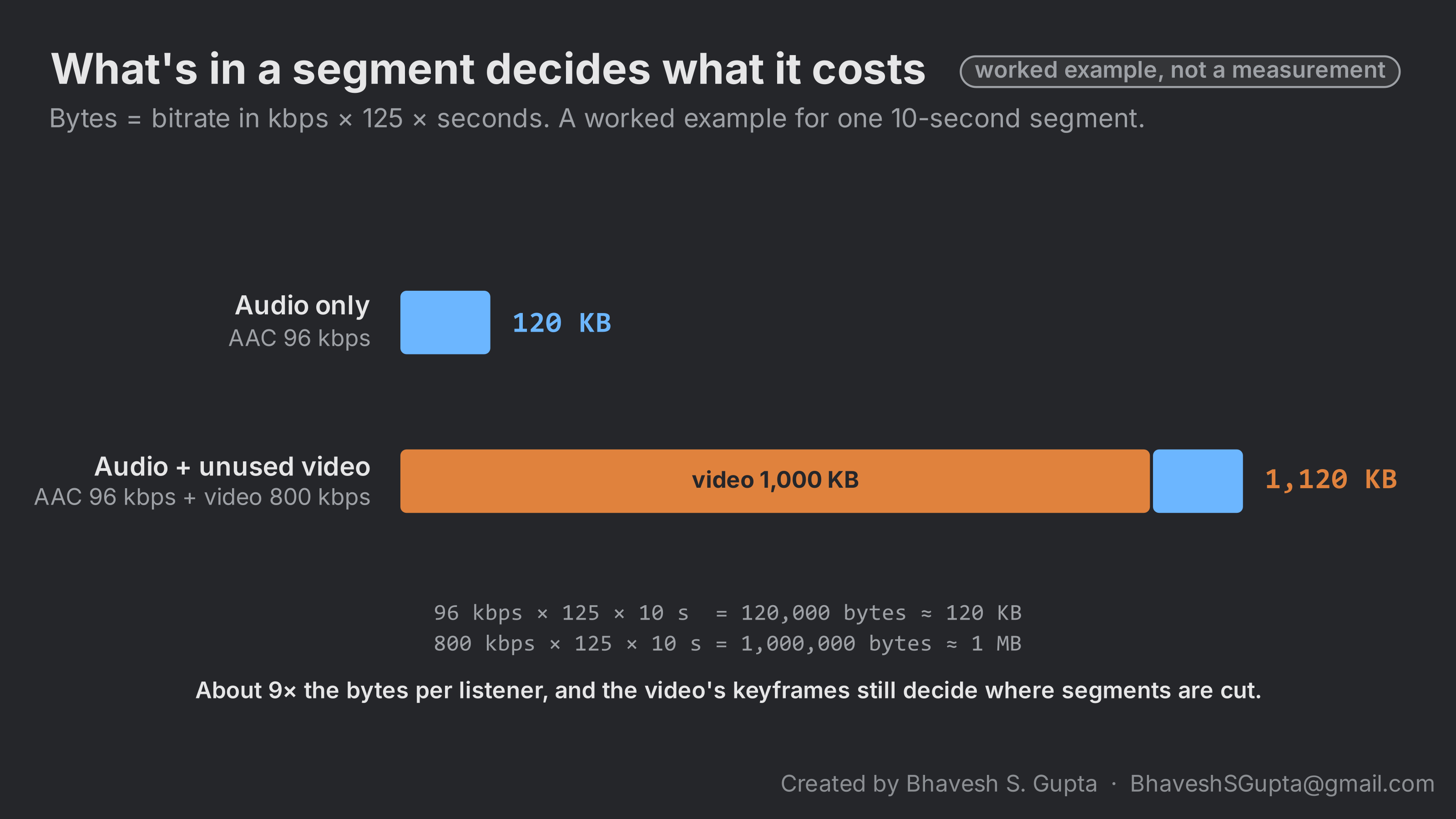
A 10-second segment of 96 kbps audio is about 120 KB. Add an 800 kbps video track nobody watches and it’s over 1.1 MB, roughly nine times the bytes for every listener, every segment. And because the segmenter still cuts on the video’s keyframes, an encoder with irregular keyframes also stretches the segments and the target duration.
If an encoder can’t send audio alone, the cheapest fix is the smallest possible video: a black source at a low resolution and frame rate, a few tens of kbps, with a fixed keyframe interval. For speech, 96 to 128 kbps AAC is plenty.
Keeping the ladder aligned
Each quality is encoded separately, and the player moves between them. When it decides to switch, it finishes the segment it’s playing and fetches the next segment number from the other quality’s playlist. That only works if segment N covers the same moment in every quality, starts on a keyframe at the same instant, and carries the same timestamps. Then the new quality picks up exactly where the old one stopped.
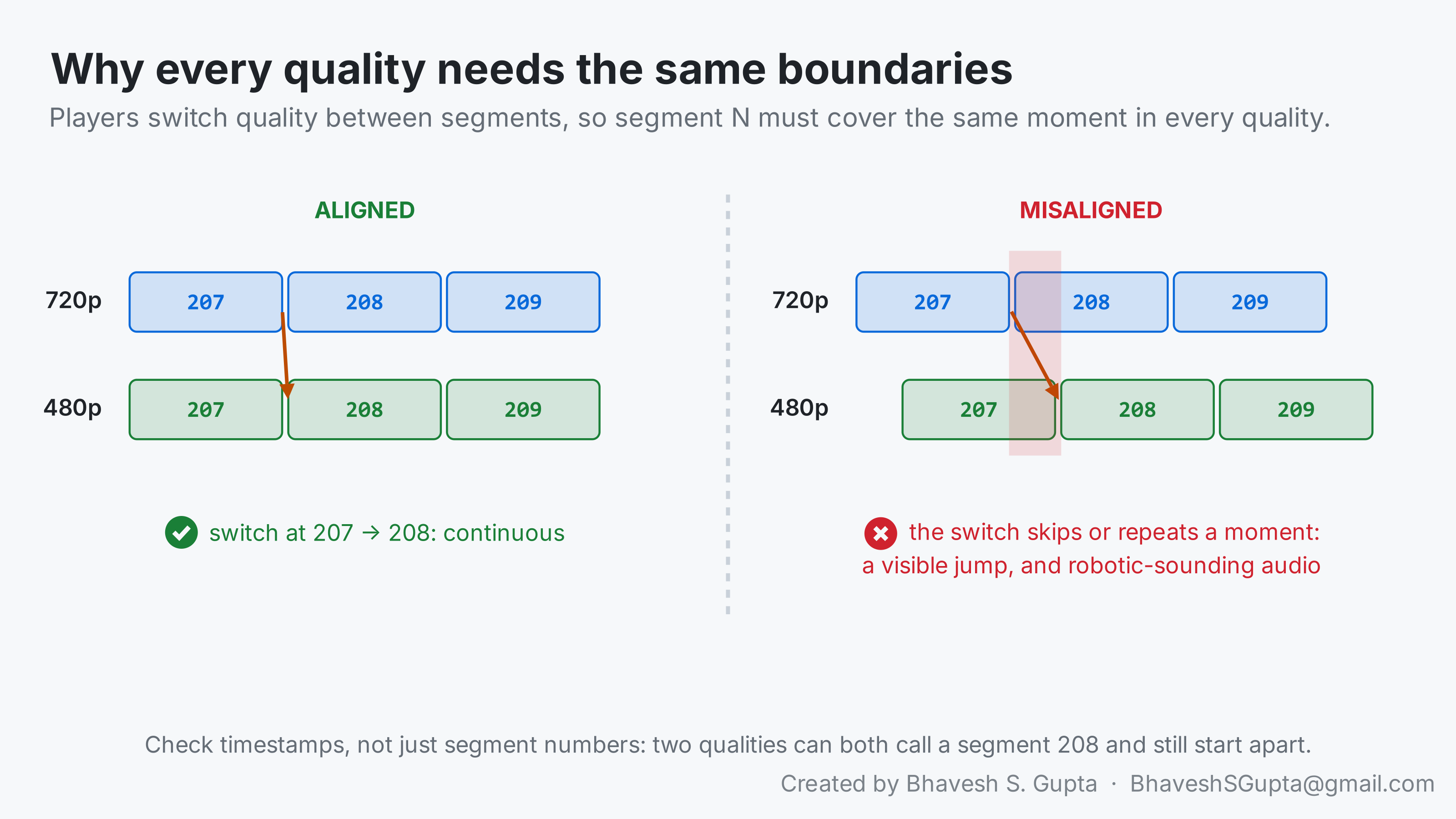
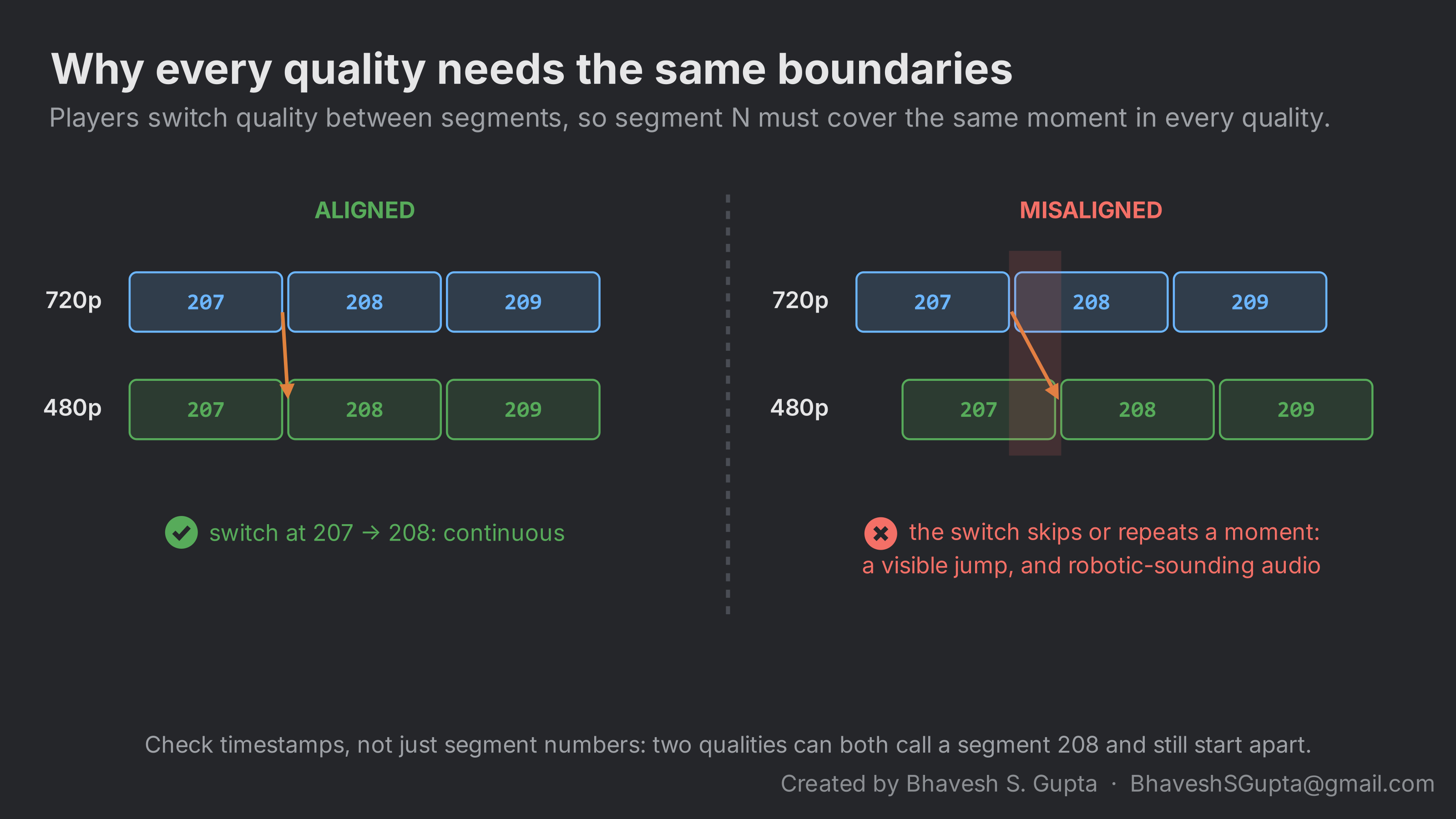
If the boundaries are offset, the switch lands a little before or after where playback was: a moment is played twice or skipped. On video that’s a jump; on audio, repeated over many switches, it sounds robotic. Matching sequence numbers aren’t enough to rule this out: two qualities can both call a segment 207 while one of them starts a fraction of a second later, or holds the moment the others call 208.
A common way to end up there is a ladder where the top quality is the original stream passed through untouched and the others are transcoded. The transcoder sets its own timing for the qualities it makes; the passthrough keeps the encoder’s. An offset of a few tens of milliseconds is inaudible on one quality and sounds robotic every time the player switches. The fix is to transcode every rung, including the top one, so they all come from the same clock.
To compare, take the same segment number from two qualities and print the first video and audio timestamps:
| |
Example output when one quality is out of step:
720p video 1000.040000
720p audio 1000.020000
480p video 1000.040000
480p audio 1000.060000
Video matches, but the 480p audio starts 40 milliseconds later than the 720p audio (1000.060 - 1000.020). Every switch between those two qualities shifts the audio by that much. The numbers should match across qualities to within a frame, for video and audio both.
What a CDN sees
From a CDN’s point of view, a live stream is a set of small text files that change every few seconds, and a stream of larger files that never change once written and stop being requested soon after. That’s the basis for everything in part 2 : how to make those URLs cacheable, what headers each kind of file needs, and where those headers should come from.
Frequently asked questions
What is the difference between EXTINF and EXT-X-TARGETDURATION?
#EXTINF is each segment’s actual length. EXT-X-TARGETDURATION is a whole-number ceiling: every segment’s EXTINF, rounded to the nearest second, must be no longer than it. Players use the target duration to time playlist reloads and to decide how far behind live to start.Why does an HLS segment have to start with a keyframe?
Players start decoding at a segment boundary when they join, switch quality or seek. Frames other than keyframes only store changes from earlier frames, so a segment that starts without a keyframe can’t be decoded until the next one arrives.What keyframe interval should I use for live HLS?
A fixed interval that divides the segment length evenly, usually 1 or 2 seconds for 4- or 6-second segments, with no extra keyframes at scene cuts. In x264 at 25 fps that’skeyint=50:min-keyint=50:scenecut=0.How far behind live does an HLS player play?
Players shouldn’t start closer than three target durations to the end of the playlist. Latency is roughly encoding and upload time, plus one segment, plus three target durations, plus the network: at least 16 seconds with 4-second segments.Further reading
- RFC 8216: HTTP Live Streaming , the spec. Section 4.3.3.1 defines the target duration rule; section 6.3 covers how clients reload playlists and where they start.
- HLS authoring specification for Apple devices : Apple’s requirements for segment lengths, keyframes and ladders.
- Enabling Low-Latency HLS , if you need lower latency than standard segments allow.
- ffprobe documentation , for every option used above.
- FFmpeg H.264 encoding guide , for keyframe and GOP settings in x264.